
In freediving, many of us start our journey with training tables, but it is not always clear or easy how to do them. For example, you may not always have a buddy available when you have time to do a CO2 table at home. Or you may be taking part in a static apnea (STA) session with your club and want to record it in a useful way, while you focus on the training itself. These situations are what led to this investigation and finding a workaround.
What is available and limitations
For pool training Garmin MK3, MK3i, G2 models include a dedicated activity called “Pool Apnea”. As of early 2026 this activity appears to work best on the G2 models, as they were designed specifically with this use in mind. I have only tested it on the MK3i, and my testing was limited to STA tables, as other functions still seem to have some bugs.
I was able to set up both General O2 and a General CO2 STA table1 directly on the watch within the Pool Apnea activity (this cannot currently be done on the phone and then synced to the watch).
When you start a session, you are asked if you want a 2‑minute breathe-up period, which is a useful feature. During this time, you also get a countdown with 3 vibrations at 30 seconds, 2 vibrations at 20 seconds, 1 vibration at 10 seconds, and individual vibrations at 5, 4, 3, 2, and 1 second.
This useful feature stops here. During the rest of the exercise, you only receive sound and vibration alerts when the set time for a recovery or a hold has elapsed. This means you need to keep an eye on the watch during the recovery phase so you can start your dive at the correct moment. During the breath hold itself you don’t receive any signals, xcept for the alert indicating that you should surface – some people may prefer this. The same applies for both dry static and pool static training.
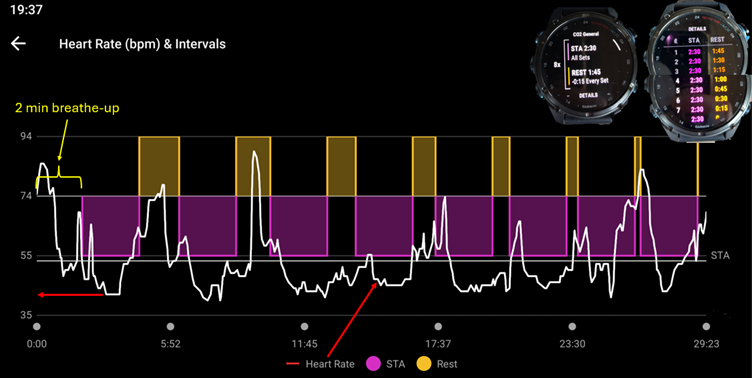
The data visualisation clearly marks the programmed Hold and Rest phases. You can also overlay heartrate data to observe your dive response – this assumes that you started and ended each dive according to the set timings.
In the image below, you can see how this looks on the watch, as well as how the data is presented on the app for a General CO₂ table with a 2‑minute breathe-up.
What I (freedivers) would like to have
I would really like to have more flexibility with this type of trainings. I’d like to look at actual dive times and surfacing times, mark somehow when contractions begin, and have some form of countdown during the recovery phase so I can focus more on proper recovery.
It would also be nice to record pool sessions when they are guided by a coach, while keeping the ability to overlay heart rate data on the dives. The system should work for both dry solo training and pool training and allow for recording different types of pool exercises.
NOTE: Never train alone in the pool!
Setting up a work around
After experimenting and testing both in the pool and on dry sessions, I managed to find a workable middle ground. Here is an example of a STA training setup created in the Garmin Connect app and executed on the watch.
The following steps describe how to create a STA session with a 3‑minute breathe-up, followed by a 3‑minute hold, repeated 5 times, for a total training time of 30 minutes.
Steps to create a custom workout2 in the Garmin Connect app:
- Open the Garmin Connect app
- Go to More (the “…” in the bottom menu)
- Select Training and planning
- Tap Workouts
- Tap Create a Workout
- Select Custom
- Delete all the existing steps
- Tap Add Repeat – this creates a “Go/Recover” structure
- Move “Recover” first (this is important – always start these kinds of arrangements with a recovery phase)
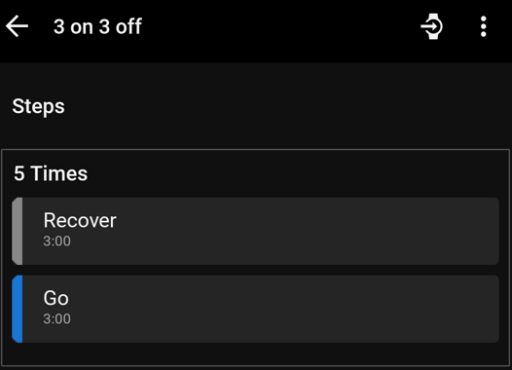
- Set the “Recover” time to 3 minutes
- Set the “Go” time to 3 minutes
- Set the number of repetitions to 5
- Give the workout a name, then save it
- Tap the top right button to send it to your watch
Now that the workout has been added to your watch, you just need to find it there and start it. How do you do that?
- Press the main button on the watch to open the activity menu
- Scroll down to “Workouts”
- Find “My Workouts” or “Custom Workouts”
- Find the workout by the name you gave it.
- Select it, then choose Do Workout
- This next step is important, as it determines which sensors will be active and what data will be recorded
- Select the activity “Other”
You are now ready to start your training session!
Notes on the “Other” activity and the custom workout
- You’ll hear a 5second audio signal countdown before each “Recover” or “Go” phase
- You will get both a sound and a vibration when each phase reaches O
- Heart rate is recorded
- By default, GPS and altitude tracking are active in the Other activity. This allows you to record location and elevation, with elevation being particularly relevant in our case
If you run this custom workout in a dry session, you will benefit from the countdowns and alerts. Afterwards, you will also be able to overlay your heart rate data in the app. If you run it in the pool, you also get additional “elevation” data when the watch gets under the water.
Because water is much denser than air, the watch interprets submersion as a rapid descent—like going down a very steep hill. When you return to the surface, it interprets this as a rapid ascent. Small movements underwater will be recorded in a magnified way.
Behavior and Data visualization
With this setup and this specific apnea table, the watch behaves as follows:
- Start the workout
- The watch displays a countdown for the first phase “recover”
- At t=-5 seconds it beeps for each second
- When the countdown reaches 0, it makes a sound and vibrates
- The same sequence repeats for the Go phase, regardless of whether the watch is submerged or not
- The watch does not switch to a different mode or activity regardless of depth
- You can pause and resume the work-out
- You can skip to the next interval in the work out
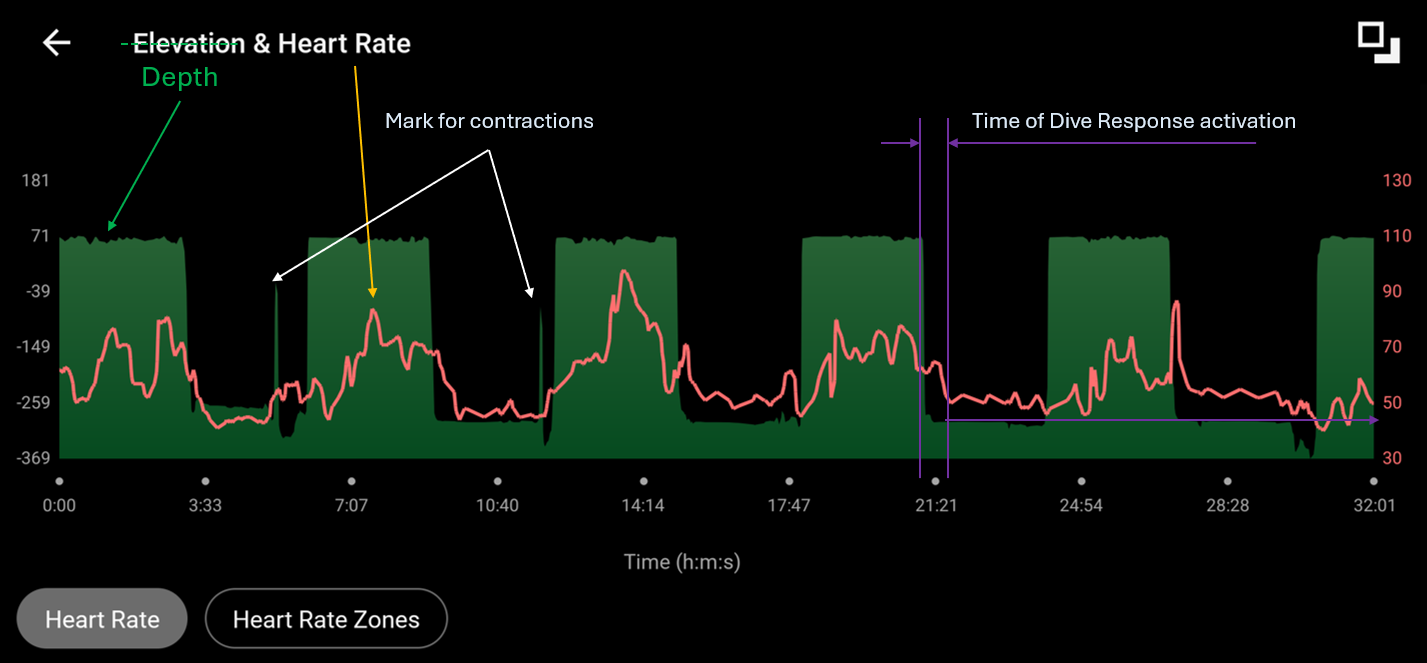
After completing this kind of training table in the pool, with the watch on the wrist and a buddy next to you, the data can be visualised in the app and it looks like below.
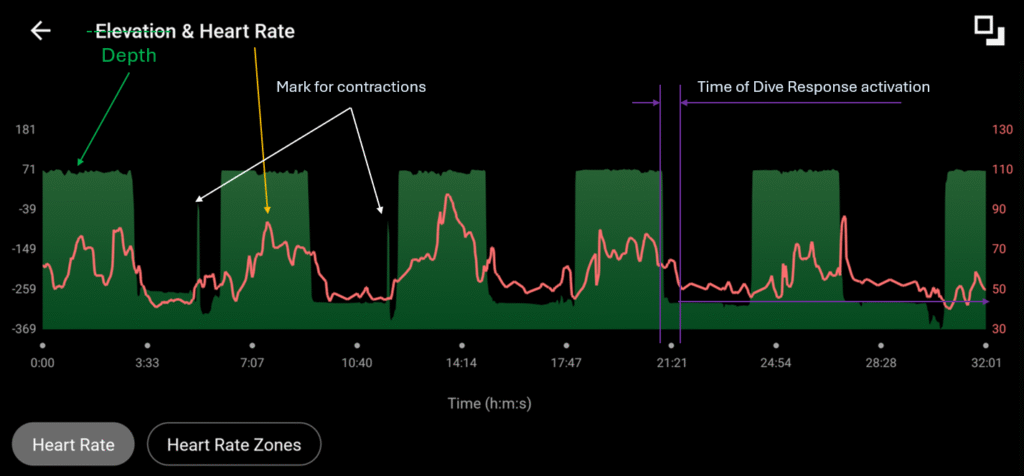
The green areas represent the moments when the watch was above the water (higher level) and below the water (lower level). This is not based on preset intervals—it reflects the actual moments when the watch submerges and surfaces.
You can also mark specific events, such as the start of contractions or any other moment you want to track, by briefly lifting the watch out of the water and then submerging it again. This creates a spike in the elevation data, which you can later review in the app to check the exact timing.
Practical observations
The MK3i, G1, and Forerunner 225, when running a Custom Workout, did not switch to another mode when submerged. They remained in the program and gave the expected alarms. The G1, however, doesn’t seem to include the 5-second countdown.
These watches use GPS and/or altimeter data to determine altitude. When submerged, the algorithm “understands” sudden altitude changes and/or loss of GPS connection. Because water is much denser than air, a change in altitude of 500-600 meters is roughly equivalent to a depth change of only 0.5-0.6 meters.
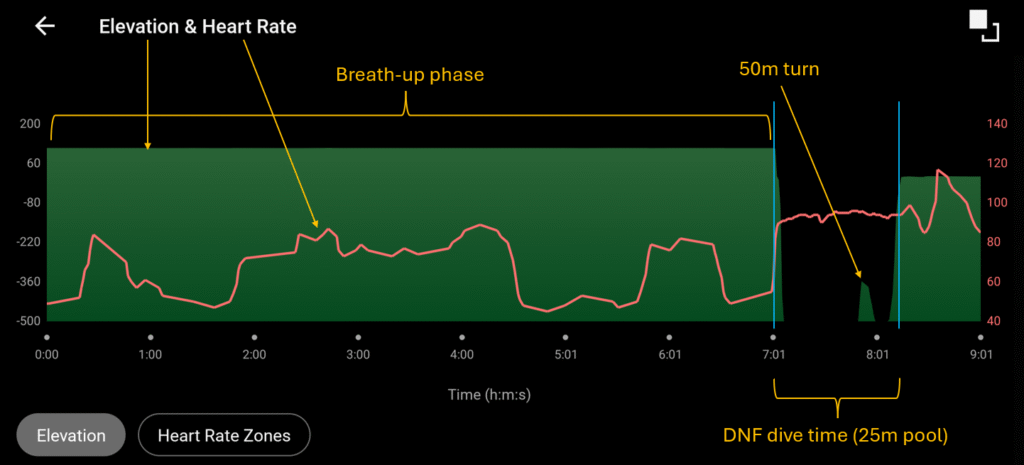
If the watch goes deeper than approximately 0.6 m in the pool, it may display a flat line at around −500 meters of elevation for the duration of the submersion.
By creating a custom workout with a continuous 1‑hour “Go” phase, you can experiment with different pool exercises:
- Have someone leading the session and you execute it while your watch records it
- Do dynamic dives and evaluate exact start and end times
- Record bottom crawl sessions. If you stay shallower than about 0.5 m, you can mark events as previously described in the article.
- Record maximum attempts and review them later—you will see clear start and exit points if the watch remains submerged throughout the dive.
Conclusions
With this workaround set-up it is easier to record and review specific pool-based freediving training exercises. You can also program various tables for dry training or, if you have a buddy to watch over you, pool training.
There are other diving or multi-sport watches3 which could potentially be set up this way. It is important to test and evaluate your watch—regardless of the model or brand—to determine whether it is suitable for this type of setup for pool freediving training. Ask yourself a few key questions: Is it waterproof enough for regular pool use? Can you create custom workouts or similar structures? Does it record heart rate? Does it provide the alerts and feedback you need?
Maybe, if your focus is not diving in the sea, a watch with more basic functions is sufficient to support you with pool and dry training.
Enjoy training with these arrangements! Hope that knowing all of the above will get you the most out of your watch or make you take wiser decisions over what you want to train and what device would support that best.